Choosing the best antivirus for Windows 11 is not only about finding software that detects viruses. A good antivirus should provide reliable real-time protection, block malicious websites and downloads, protect personal files from ransomware, and work without noticeably slowing down your PC.
Windows 11 already includes Microsoft Defender through the built-in Windows Security app. For many users, this provides a solid basic level of protection without installing additional software. However, third-party antivirus programs can offer extra security features such as advanced ransomware protection, password managers, VPNs, identity monitoring, and protection for multiple devices.
In this guide, we compare popular antivirus solutions for Windows 11 based on their security features, ease of use, system performance, additional tools, and pricing.
The right choice depends on how you use your computer. A home user who mainly browses the web and checks email may need a different set of features than a gamer, remote worker, or someone who stores sensitive files and financial information on their PC.
We will also look at Windows 11 virus scan options, including how to scan your computer with Windows Security and what to do if malware is detected.
By the end of the guide, you will have a clearer understanding of the differences between Windows 11’s built-in protection and third-party antivirus software, and which features are worth paying for.
Table of Contents
Best Antivirus for Windows 11 at a Glance
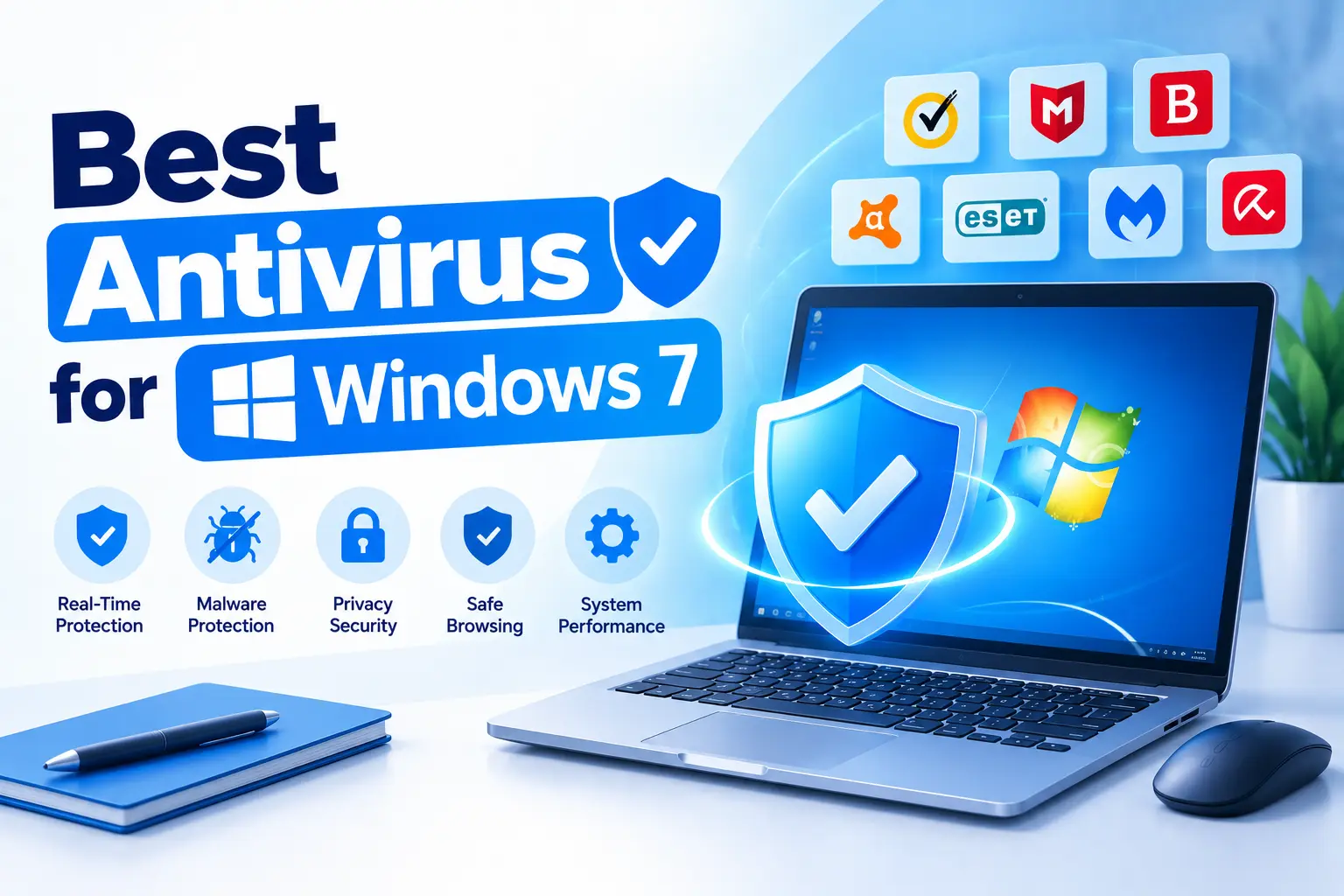
The seven antivirus providers below take slightly different approaches to Windows 11 security. Some focus primarily on malware and ransomware protection, while others combine antivirus with VPN, password management, identity protection, privacy tools, or system optimization.
For a fair comparison, the table focuses on the features that matter most for a typical Windows 11 user. Feature availability can vary by product tier and subscription, so the table should be viewed as a high-level comparison rather than a complete feature list.
| Antivirus | Windows 11 | Real-Time Protection | Ransomware Protection | Web Protection | VPN | Password Manager | Free Version |
| Norton | Yes | Yes | Yes | Yes | Yes, depending on plan | Yes | Limited trial/options |
| McAfee | Yes | Yes | Yes | Yes | Yes, depending on plan | Yes | Trial |
| Bitdefender | Yes | Yes | Yes | Yes | Yes, depending on plan | Yes, depending on plan | Yes |
| Avast | Yes | Yes | Yes | Yes | Yes, depending on plan | Yes | Yes |
| ESET | Yes | Yes | Yes | Yes | Depends on plan | Depends on plan | Trial |
| Malwarebytes | Yes | Yes with Premium | Yes | Yes | Available separately/depending on plan | No/depends on product | Yes |
| Avira | Yes | Yes | Yes | Yes | Yes, limited in free version | Yes | Yes |
Norton
Norton provides a broad security package for Windows 11. Norton AntiVirus Plus includes real-time protection against viruses, ransomware, spyware and phishing, as well as a Smart Firewall, cloud backup and password manager. Norton 360 plans add features such as VPN, SafeCam and additional privacy and security tools. Norton officially lists Windows 11 as a supported operating system.
Key strengths: comprehensive protection, firewall, backup and privacy features.
Best suited for: users looking for an all-in-one security package rather than basic antivirus protection.
McAfee
McAfee combines antivirus protection with additional security and privacy features. Depending on the subscription, users can get tools for web protection, identity monitoring, VPN access, password management and protection across multiple devices.
Key strengths: broad security ecosystem and multi-device protection.
Best suited for: households and users who want to manage security for several devices from one account.
Bitdefender
Bitdefender offers several Windows security tiers, from free antivirus protection to more comprehensive security suites. Its paid products include real-time threat detection, multi-layer ransomware protection, web and anti-phishing protection, vulnerability assessment and additional privacy tools. Some plans also include VPN and password management.
Bitdefender also emphasizes low system impact, with cloud-based scanning and technologies designed to reduce the resources used on the local PC.
Key strengths: layered malware protection, ransomware protection, web security and performance-focused design.
Best suited for: users who want strong protection without adding a large workload to their Windows 11 PC.
Avast
Avast offers free antivirus protection for Windows 11 with real-time malware protection, Wi-Fi security scanning, web protection and ransomware protection. Avast also offers paid security products with additional privacy and security features.
The free version is particularly notable because it provides core antivirus protection without requiring a paid subscription. Avast states that its Windows 11 protection also includes features designed to protect users while browsing, shopping and banking online.
Key strengths: free real-time protection and a broad set of basic security tools.
Best suited for: users who want antivirus protection without immediately paying for a subscription.
ESET
ESET focuses on layered protection against malware, ransomware, spyware, phishing and other online threats. Its Windows security products can also include secure online payments and banking, anti-theft features and additional browser protection depending on the product.
Key strengths: layered protection and additional security controls.
Best suited for: users who want a traditional antivirus solution with more advanced configuration options.
Malwarebytes
Malwarebytes has traditionally been associated with malware detection and removal, but its current Premium Security product provides continuous real-time protection. It protects against viruses, malware, ransomware, trojans, botnets and spyware, while also providing web protection and exploit protection.
Malwarebytes also includes features such as Browser Guard, PUP protection, privacy controls and Play Mode. The free version is primarily positioned as a tool for scanning and removing existing infections, while Premium adds continuous real-time protection.
Key strengths: malware removal, real-time protection, web protection and a straightforward interface.
Best suited for: users who want a simple security tool with a strong focus on malware detection and cleanup.
Avira
Avira provides both free and paid security products for Windows 11. Avira Free Security includes real-time antivirus protection, ransomware and spyware protection, a limited VPN, password manager, browser tracking protection and software updating tools.
Avira also emphasizes low resource usage, making its products suitable for users who want security software that has a relatively small impact on everyday PC performance.
Key strengths: free antivirus, privacy tools, VPN and system utilities.
Best suited for: users looking for a combination of antivirus and additional privacy features in a free package.
Best Antivirus for Windows 11 by Use Case
Instead of choosing an antivirus solely by the number of features, it is useful to match the software to the way you use your PC.
| Use Case | Antivirus to Consider | Main Reason |
| All-in-one security | Norton | Antivirus plus firewall, backup, VPN and password tools |
| Multi-device protection | McAfee | Broad security ecosystem for multiple devices |
| Advanced malware protection | Bitdefender | Layered threat and ransomware protection |
| Free antivirus | Avast | Free real-time Windows 11 protection |
| Advanced controls | ESET | Layered protection and additional security controls |
| Malware cleanup | Malwarebytes | Strong focus on malware detection and removal |
| Free security + privacy tools | Avira | Antivirus, limited VPN, password manager and privacy features |
These categories describe the providers’ feature sets and intended use cases rather than a universal ranking. The best choice for an individual Windows 11 PC depends on whether the priority is malware protection, privacy, multiple-device coverage, system performance, or additional security tools.
What to Look for in the Best Antivirus for Windows 11
Choosing the best antivirus for Windows 11 is easier when you know which features actually matter. Antivirus products can differ significantly in how they detect threats, protect personal files, affect system performance, and handle online risks.
Instead of focusing only on the number of features included in a plan, look at the quality of the core protection and whether the software fits the way you use your Windows 11 PC.
Malware and Virus Detection
The primary purpose of antivirus software is to detect and block malicious programs. A good Windows 11 antivirus should protect against common threats such as viruses, trojans, spyware, worms, ransomware, and potentially unwanted applications.
Modern antivirus products generally use several detection methods. Signature-based detection identifies known threats, while behavioral and cloud-based technologies can help detect new or modified malware.
When comparing antivirus products, look for:
- Real-time malware detection
- Automatic threat blocking
- Behavioral analysis
- Cloud-based threat detection
- Protection against zero-day threats
- Automatic database updates
- Quarantine and malware removal
Detection quality is more important than simply having a long list of additional features. The antivirus should be able to identify threats before they can cause significant damage.
Real-Time Protection
Real-time protection continuously monitors your computer instead of waiting for you to start a manual scan. It can check files when they are opened, downloaded, installed, or modified.
This is particularly important for Windows 11 users who frequently download software, open email attachments, use USB drives, or browse unfamiliar websites.
A reliable real-time protection system should be able to:
- Scan downloaded files automatically
- Block suspicious applications
- Monitor running processes
- Detect malicious behavior
- Stop threats before they execute
- Warn you when potentially dangerous content is detected
Real-time protection should normally remain enabled. Disabling it can leave the system exposed even if you perform regular manual virus scans.
Ransomware Protection
Ransomware is designed to encrypt files or otherwise restrict access to them and then demand payment. Because personal documents, photos, and business files can be difficult or impossible to replace, ransomware protection is an important feature to consider.
Look for antivirus software that provides dedicated ransomware protection in addition to general malware detection.
Useful features include:
- Behavioral ransomware detection
- Protection for important folders
- Unauthorized application blocking
- File modification monitoring
- Automatic threat isolation
- Backup or file recovery features
Some antivirus providers reserve advanced ransomware controls for their paid plans, so check the exact features included with the subscription you are considering.
Performance and System Impact
Antivirus software runs in the background, so its impact on system performance matters. A security program that consumes excessive CPU, RAM, or disk resources can make everyday tasks feel slower.
This is especially relevant on older Windows 11 computers and laptops with limited hardware resources.
When comparing antivirus products, consider:
- CPU usage during real-time protection
- RAM consumption
- Startup impact
- Full-scan performance
- Background activity
- Effect on gaming and other demanding applications
Modern antivirus software often uses cloud-based technologies to move some processing away from the local computer. However, the actual performance impact can vary depending on the product, Windows 11 configuration, hardware, and type of activity.
Privacy and Online Protection
Traditional antivirus protection focuses mainly on malicious files and programs. Modern security products increasingly address online threats as well.
Web protection can warn you about phishing pages, malicious websites, dangerous downloads, and fraudulent links before you interact with them.
Depending on the product, privacy features may include:
- Anti-phishing protection
- Malicious website blocking
- Browser protection
- Tracking protection
- VPN
- Identity monitoring
- Webcam protection
- Dark web monitoring
These features can be useful if you regularly shop online, use online banking, work remotely, or handle sensitive information.
Additional Security Features
Extra features can make one antivirus package more useful than another, but they should not replace strong core malware protection.
Depending on the provider and subscription, you may find:
- VPN: encrypts internet traffic and can provide additional privacy on public networks.
- Password manager: stores and manages passwords securely.
- Firewall: monitors network connections and can block unauthorized traffic.
- Parental controls: helps manage children’s online activity.
- Identity monitoring: alerts users to certain potentially compromised personal information.
- Secure banking tools: adds additional protection when accessing financial websites.
- System optimization tools: identifies outdated software or unnecessary files.
Before paying for a premium antivirus plan, check whether you actually need these extras. If you already have a separate password manager or VPN, for example, paying for the same functionality again may not provide much additional value.
Ease of Use and Configuration
Security software should be easy to understand and manage. A complicated interface can make it difficult to determine whether your PC is protected or whether an important warning requires action.
A good antivirus interface should make basic tasks straightforward:
- Checking the current security status
- Starting a manual scan
- Reviewing detected threats
- Updating the software
- Managing real-time protection
- Changing notification settings
- Viewing subscription information
Advanced users may also want detailed configuration options, while beginners may prefer an antivirus that works effectively with minimal manual setup.
Pricing and Subscription Terms
Price is another important factor when comparing antivirus software for Windows 11. Free products can provide basic protection, while paid plans generally add advanced security and privacy features.
When comparing prices, look beyond the advertised first-year discount. Check:
- Regular renewal price
- Number of devices included
- Length of the subscription
- Features available at each tier
- Free trial conditions
- Automatic renewal terms
- Money-back guarantee
A cheaper antivirus is not necessarily the better fit if it lacks a feature you actually need. At the same time, paying for a large security suite may not make sense if Windows Security and a basic antivirus already cover your requirements.
Windows 11 Compatibility
Finally, make sure the antivirus officially supports your version of Windows 11. Compatibility can affect installation, updates, real-time protection, and access to newer security features.
Before installing an antivirus, check the provider’s current system requirements and supported Windows versions. Also keep Windows 11 itself updated, since antivirus software is only one part of the overall security system.
Overall, the most important factors are reliable malware detection, real-time protection, ransomware protection, low system impact, web security, and compatibility with Windows 11. Additional features such as VPNs, password managers, and identity monitoring can then be used to narrow down the options according to your specific needs.
Best Anti virus Software for Windows 11 Compared
The best anti virus software for Windows 11 should combine reliable malware detection with real-time protection, ransomware defense, web security, and a reasonable impact on system performance. Additional features such as a VPN, password manager, firewall, or identity monitoring can also be useful, but their availability usually depends on the subscription tier.
Below is a closer look at seven popular antivirus providers: Norton, McAfee, Bitdefender, Avast, ESET, Malwarebytes, and Avira.
Norton — Comprehensive Windows 11 Security
Norton offers several security products for Windows 11, ranging from basic antivirus protection to broader Norton 360 packages. Norton AntiVirus Plus provides real-time protection against viruses, ransomware, spyware, phishing, and other online threats. It also includes a Smart Firewall, cloud backup, and password manager.
Higher Norton 360 plans add features such as a VPN, additional cloud storage, parental controls, and SafeCam protection. This makes Norton more than a traditional antivirus program and allows users to combine several security tools in one subscription.
Key features:
- Real-time malware and ransomware protection
- Smart Firewall
- Phishing and online threat protection
- Cloud backup
- Password manager
- VPN on selected plans
- SafeCam and parental controls on selected plans
Pros:
- Broad range of security and privacy tools
- Supports Windows 11
- Several subscription options
- Useful additional protection for personal files and online accounts
Cons:
- Many advanced features require higher-tier plans
- Users who only need basic antivirus protection may not need the full feature set
Best suited for: users who want antivirus protection combined with privacy, backup, and other security features in one package.
McAfee — Antivirus and Multi-Device Protection
McAfee Total Protection combines antivirus protection with web security, firewall protection, password management, VPN, and identity monitoring. McAfee states that its Windows products protect against viruses, online threats, and ransomware using both online and offline protection.
One of McAfee’s notable advantages is its focus on protecting multiple devices. Depending on the plan, a subscription can cover Windows PCs as well as macOS, Android, and iOS devices. Some plans also provide unlimited device coverage.
Key features:
- Antivirus and ransomware protection
- Web protection
- Advanced Firewall
- Password manager
- Secure VPN
- Identity monitoring
- File shredder
- Scam detection
- Multi-device protection
Pros:
- Wide range of security and privacy features
- Cross-platform support
- Multiple-device plans available
- Identity monitoring and VPN included in applicable plans
Cons:
- Feature availability varies considerably between plans
- Renewal pricing can differ from introductory pricing
Best suited for: families and users who want to protect several devices under one subscription.
Bitdefender — Layered Malware and Ransomware Protection
Bitdefender offers Windows 11 protection through products such as Bitdefender Antivirus Plus and Total Security. Its security layers are designed to protect against viruses, spyware, adware, ransomware, rootkits, and other threats. Bitdefender also provides web protection against phishing and dangerous websites.
Bitdefender places significant emphasis on system performance. Its Windows products use technologies designed to reduce the amount of local system resources required for security operations. Total Security also includes features such as a password manager, VPN, firewall, anti-tracker, Wi-Fi security tools, and device optimization, depending on the plan.
Key features:
- Real-time malware protection
- Multi-layer ransomware protection
- Web and anti-phishing protection
- Privacy Firewall
- Password manager on selected plans
- VPN
- Anti-tracker
- Wi-Fi Security Advisor
- Game, Movie, and Work Modes
Pros:
- Broad malware and ransomware protection
- Strong selection of additional security features
- Windows 11 support
- Cross-platform plans available
- Performance-focused design
Cons:
- Some useful features are restricted to higher-tier products
- The VPN included with Total Security has a daily traffic limit
Best suited for: users who want comprehensive malware protection with additional privacy and performance features.
Avast — Free Antivirus for Windows 11
Avast is one of the providers offering a free antivirus solution for Windows 11. Avast Free Antivirus provides real-time malware protection along with features such as Wi-Fi security scanning, email protection, web protection, and ransomware protection.
Avast also offers paid security products with additional privacy and security tools. Its free product is particularly relevant for users who want basic antivirus protection without committing to a paid subscription.
Key features:
- Real-time antivirus protection
- Malware detection
- Ransomware protection
- Web protection
- Email protection
- Wi-Fi security scanning
- Scam protection features
Pros:
- Free version available
- Real-time protection included
- Easy to install and use
- Useful selection of basic security features
Cons:
- Advanced features require paid plans
- Users may encounter additional upgrade options within the product
Best suited for: users looking for free antivirus protection with more features than a basic malware scanner.
ESET — Lightweight and Configurable Protection
ESET provides several Windows security products, including its current ESET HOME Security plans. The feature set includes real-time protection against viruses and spyware, ransomware protection, advanced machine learning, exploit blocking, anti-phishing, web access protection, and a firewall.
ESET also emphasizes performance and low system impact. Its products provide several configuration and monitoring tools, which can make them useful for users who want more control over how antivirus protection operates.
Depending on the plan, ESET also provides features such as protected online banking, a secure browser, Folder Guard, data encryption, and unlimited VPN access.
Key features:
- Real-time antivirus protection
- Ransomware protection
- Advanced machine learning
- Anti-phishing
- Web protection
- Firewall
- Exploit protection
- Secure banking and browsing
- Folder protection on selected plans
- VPN on selected plans
Pros:
- Layered protection
- Detailed security controls
- Strong focus on system performance
- Wide range of advanced features
Cons:
- The most advanced tools require higher-tier plans
- The number of features can be more than a beginner needs
Best suited for: users who want configurable antivirus protection and detailed security controls.
Malwarebytes — Malware Detection and Real-Time Protection
Malwarebytes has a strong focus on malware detection and removal. Its current Premium Security product for Windows provides real-time protection against viruses, malware, ransomware, trojans, botnets, spyware, and other threats. It also includes protection against phishing and dangerous websites.
Malwarebytes offers a free version primarily aimed at scanning and removing existing infections, while Premium adds continuous real-time protection. The Premium product also includes PUP protection, Browser Guard, exploit protection, Play Mode, and privacy controls.
Key features:
- Real-time malware protection
- Ransomware protection
- Web and phishing protection
- PUP protection
- Exploit protection
- Browser Guard
- Play Mode
- Manual malware scanning
Pros:
- Straightforward interface
- Strong focus on malware protection
- Free version available
- Useful combination of scanning and real-time protection
- Play Mode can reduce interruptions during gaming
Cons:
- The free version has fewer preventive features than Premium
- It does not provide the same broad bundle of VPN, password-management, and identity features as some larger security suites
Best suited for: users who prioritize malware detection, cleanup, and straightforward real-time protection.
Avira — Free Antivirus With Privacy Tools
Avira provides both free and paid security products for Windows 11. Avira Free Security includes real-time protection against malware, viruses, ransomware, and spyware. It also includes several additional tools, including a limited VPN, password manager, browser tracking blocker, software updater, and system optimization features.
Avira’s free package therefore goes beyond basic antivirus scanning. Its browser protection can help block malicious websites and tracking, while the Software Updater can help keep applications current and reduce exposure to vulnerabilities in outdated software.
Key features:
- Real-time antivirus protection
- Ransomware and spyware protection
- Web protection
- Password manager
- Limited VPN
- Browser tracking blocker
- Software updater
- Privacy tools
- System optimization
Pros:
- Free version available
- Good selection of additional privacy tools
- Real-time protection
- Software update and optimization features
Cons:
- Some advanced features require a paid subscription
- The free VPN has a limited amount of monthly traffic
Best suited for: users who want free antivirus protection together with basic privacy and system-maintenance tools.
How These Antivirus Products Differ
All seven providers cover the fundamental Windows 11 security requirements, but their product strategies are different.
Norton and McAfee focus on broader security ecosystems that combine antivirus with tools such as VPNs, password managers, backup, and identity protection.
Bitdefender and ESET offer layered antivirus protection with a strong emphasis on malware detection, ransomware protection, and system performance.
Avast and Avira provide free Windows 11 antivirus products with additional security and privacy tools, making them relevant to users who want to start without a paid subscription.
Malwarebytes focuses more directly on malware detection, removal, and real-time threat prevention, with a relatively straightforward product experience.
The right choice therefore depends on which combination of protection, performance, privacy features, device coverage, and price matches your requirements. Rather than choosing based on the number of features alone, compare the specific plan you intend to purchase and make sure the features you need are actually included.
Windows Security vs Third-Party Antivirus
Windows 11 already includes a built-in security system, so installing a separate antivirus is not automatically necessary for every user. Windows Security includes Microsoft Defender Antivirus, Windows Firewall, Microsoft Defender SmartScreen, and other security features designed to protect the system from malware, phishing, malicious downloads, and unauthorized network access.
Third-party antivirus programs such as Norton, McAfee, Bitdefender, Avast, ESET, Malwarebytes, and Avira can add additional features and different approaches to security. The important question is not simply whether you need “another antivirus,” but what additional protection or functionality you actually need.
Is Windows Defender Enough for Windows 11?
For many typical home users, Microsoft Defender provides a substantial baseline of protection without requiring a separate antivirus subscription. It provides real-time, behavior-based, and heuristic protection, receives security intelligence updates through Windows Update, and can use cloud-delivered protection to identify new threats.
Windows Security also includes several other security layers:
- Microsoft Defender Antivirus
- Microsoft Defender SmartScreen
- Windows Firewall
- Network protection
- Protection against potentially unwanted applications
- Exploit protection
- Tamper protection
- Controlled Folder Access for ransomware protection
- Device security features such as Secure Boot and core isolation
SmartScreen can warn about malicious websites, phishing pages, dangerous downloads, and potentially unsafe applications. Windows Security also provides Quick, Full, and Custom scan options.
For someone who keeps Windows updated, downloads software from trustworthy sources, and follows basic online security practices, these built-in tools may cover the core requirements.
Windows Security vs Paid Antivirus
The biggest difference is usually not the presence or absence of basic antivirus protection. Instead, third-party products often package additional security, privacy, and convenience features around their antivirus engine.
| Feature | Windows Security | Third-Party Antivirus |
| Real-time malware protection | Yes | Yes |
| Manual virus scans | Yes | Yes |
| Ransomware protection | Yes | Usually |
| Firewall | Windows Firewall | Product-dependent |
| Phishing protection | Yes | Usually |
| Malicious website protection | Yes | Usually |
| VPN | No dedicated consumer VPN included | Often available |
| Password manager | No | Often available |
| Identity monitoring | Limited | Available with selected plans |
| Parental controls | Basic family features | Available with selected plans |
| Multi-device management | Microsoft ecosystem | Often included |
| Backup | Limited/Windows ecosystem | Available with selected plans |
| Cost | Included with Windows 11 | Free or paid, depending on product |
The exact feature set varies considerably between antivirus providers and subscription tiers. A premium antivirus suite may therefore offer capabilities that Windows Security does not provide as part of its standard Windows 11 protection.
When Should You Install a Third-Party Antivirus?
A third-party antivirus can make sense when you need features beyond the built-in Windows protection.
For example, you may want one if you need:
Additional privacy tools. Some security suites include a VPN, anti-tracking features, webcam protection, or identity monitoring.
Protection for multiple devices. Some subscriptions can cover Windows PCs, Macs, smartphones, and tablets under a single account.
Additional parental controls. Certain security suites provide more extensive tools for managing children’s online activity.
Password management. Some antivirus subscriptions include a password manager, which can be useful if you want several security tools managed through one service.
Additional ransomware controls. Third-party products can offer their own ransomware detection and file-protection technologies in addition to Windows Security.
Centralized security management. Some products provide a dashboard for monitoring several devices and security features from one place.
The key point is that a third-party antivirus should provide a specific benefit that justifies installing and potentially paying for another security product.
Can You Use Windows Defender and a Third-Party Antivirus Together?
Windows 11 is designed to avoid having two full-time antivirus engines competing for the same real-time protection role. When a compatible third-party antivirus is installed and registered as the primary antivirus, Microsoft Defender Antivirus is automatically disabled as the active antivirus solution. If the third-party product is removed, Defender can automatically become active again.
However, Windows Security itself does not disappear. It continues to provide access to other Windows security components, including Windows Firewall and various device and browser security settings.
This means you generally should not install two full antivirus products simply to try to obtain “double protection.” Instead, choose one primary real-time antivirus solution and keep the other Windows security features enabled.
Windows Security or Third-Party Antivirus: Which Approach Fits?
The choice can be simplified into two approaches.
Windows Security is a practical option when you:
- Want basic protection without an additional subscription
- Mainly use your PC for browsing, work, streaming, and everyday tasks
- Keep Windows and applications updated
- Download software from trusted sources
- Do not need an integrated VPN or password manager
- Prefer fewer background applications
A third-party antivirus may be useful when you:
- Want additional privacy or identity-protection tools
- Need protection for multiple devices
- Want an integrated VPN or password manager
- Need additional parental-control features
- Prefer a security suite with centralized management
- Want specific security features offered by a particular provider
There is therefore no single setup that is right for every Windows 11 user. The decision should be based on the features you need rather than assuming that a paid antivirus automatically provides better protection for every situation.
For most users, the starting point is to make sure Windows Security, Microsoft Defender, Windows Firewall, SmartScreen, and Windows Update are properly configured and active. A third-party antivirus can then be considered when its additional features provide a clear benefit.
How to Choose the Best Antivirus for Windows 11
Choosing the best antivirus for Windows 11 does not necessarily mean selecting the product with the largest number of features. The right antivirus should provide reliable protection, work well with your hardware, and include the features that match the way you use your PC.
Use the following steps to compare antivirus products before choosing a subscription.
Step 1: Decide Between Free and Paid Antivirus
Start by deciding whether you need basic antivirus protection or a broader security package.
Free antivirus products can provide core features such as real-time malware detection, virus scanning, and basic web protection. They can be suitable for users who mainly need protection against common threats and do not require additional security services.
Paid antivirus plans can add features such as:
- Ransomware protection
- VPN
- Password manager
- Identity monitoring
- Parental controls
- Advanced web protection
- Multi-device coverage
- Additional privacy tools
Do not choose a paid plan simply because it has more features. First identify which features you actually need.
Step 2: Check Windows 11 Compatibility
Before installing antivirus software, verify that the current version officially supports Windows 11.
Check the provider’s system requirements for:
- Supported Windows versions
- Minimum RAM and storage requirements
- Supported processor architectures
- Required Windows updates
- Browser compatibility
- Supported security features
Compatibility is especially important when installing antivirus software on an older PC that has been upgraded to Windows 11.
You should also check whether the provider supports the specific Windows 11 version you are running. Antivirus software needs regular updates, so using an outdated or unsupported product can reduce its effectiveness.
Step 3: Compare Malware Detection and Real-Time Protection
Malware detection should be one of the most important factors in your decision.
Look for products that provide multiple layers of protection rather than relying only on traditional virus signatures. Modern antivirus software can combine signature detection with behavioral analysis, machine learning, cloud-based detection, and other technologies.
Check whether the product protects against:
- Viruses
- Trojans
- Spyware
- Ransomware
- Worms
- Rootkits
- Phishing
- Malicious downloads
- Potentially unwanted applications
Real-time protection is particularly important because it can detect threats while you are downloading, opening, or running files.
Step 4: Check System Performance Impact
An antivirus program runs in the background, so its effect on system performance matters.
Compare how different products handle:
- CPU usage
- RAM consumption
- Startup time
- Background processes
- Full system scans
- File downloads
- Gaming and other demanding applications
This is particularly important for laptops and older Windows 11 PCs with limited hardware resources.
A good antivirus should provide continuous protection without noticeably interfering with normal activities.
Step 5: Look for Ransomware Protection
Ransomware deserves special attention because it can prevent you from accessing important documents, photos, and other personal files.
When comparing antivirus products, look for dedicated ransomware protection rather than relying solely on general malware detection.
Useful features can include:
- Behavioral ransomware detection
- Protected folders
- Unauthorized file-change blocking
- Automatic threat isolation
- Backup or recovery tools
- Exploit protection
Check the exact subscription tier because advanced ransomware features may not be included in every plan.
Step 6: Consider Privacy and Web Protection
Antivirus protection is only one part of online security. If you frequently shop, bank, work, or communicate online, web and privacy features may also be important.
Consider whether the antivirus provides:
- Phishing protection
- Malicious website blocking
- Dangerous download detection
- Browser protection
- Anti-tracking tools
- VPN
- Webcam protection
- Identity monitoring
For example, a VPN may be useful on public Wi-Fi, while anti-phishing protection can help identify fraudulent websites before you enter login or payment information.
Step 7: Compare Additional Features
Once you have compared the core protection, look at the additional features included with each product.
Common extras include:
Password manager: stores passwords and can help generate stronger credentials.
VPN: encrypts internet traffic and provides additional privacy when using networks such as public Wi-Fi.
Firewall: monitors network connections and can block unauthorized traffic.
Parental controls: provide tools for managing children’s online activity.
Identity monitoring: can alert you to certain potentially exposed personal information.
Secure banking tools: provide additional browser or transaction protection for online financial services.
File shredder: can securely delete selected files so they are more difficult to recover.
Only pay extra for features that are useful to you. If you already use a dedicated password manager or VPN, for example, you may not need the equivalent feature in your antivirus package.
Step 8: Check Device Limits and Pricing
Compare the actual subscription rather than looking only at the advertised starting price.
Pay attention to:
- Number of protected devices
- Number of users
- Subscription duration
- First-year price
- Renewal price
- Monthly vs annual billing
- Included features
- Free trial conditions
- Money-back guarantee
- Automatic renewal
A plan that costs slightly more but covers several computers and smartphones may be more suitable for a household than a cheaper single-device subscription.
Also check the renewal price before purchasing. Antivirus providers frequently advertise discounted introductory prices that can differ from the standard renewal cost.
Step 9: Consider Customer Support and Ease of Use
Finally, consider how easy the antivirus is to operate and how much support is available if something goes wrong.
A beginner may prefer an application with a simple dashboard, automatic updates, and straightforward security recommendations. Advanced users may want more detailed settings and control over individual protection modules.
Check whether the provider offers:
- Knowledge base and documentation
- Email support
- Live chat
- Phone support
- Automated troubleshooting
- Clear security notifications
The antivirus should make it easy to determine whether your PC is protected and what action is required when a threat is detected.
What Matters Most When Choosing an Antivirus?
If you are comparing Norton, McAfee, Bitdefender, Avast, ESET, Malwarebytes, and Avira, focus first on the core protection features:
- Malware and real-time protection
- Ransomware protection
- Web and phishing protection
- System performance
- Windows 11 compatibility
- Privacy and additional security features
- Price and device coverage
- Ease of use
The best choice depends on your specific requirements. A user who wants free basic protection may prioritize a different set of features than someone looking for an all-in-one security suite for several devices.
Before purchasing, compare the exact plans rather than the antivirus brands alone. Different subscription tiers from the same provider can offer significantly different levels of protection and additional functionality.
Free vs Paid Antivirus for Windows 11
Windows 11 users can choose between free antivirus protection and paid security suites. Free products can provide essential malware protection, while paid plans typically add privacy, identity, ransomware, and multi-device features.
The right option depends on what you need from your security software. A more expensive subscription does not automatically mean that every user will benefit from it.
What You Get With Free Antivirus
Free antivirus software typically focuses on the core security functions needed to protect a Windows 11 PC.
Depending on the provider, a free plan may include:
- Real-time malware protection
- Virus and malware scanning
- Basic ransomware protection
- Phishing and malicious website protection
- Suspicious download detection
- Security updates
- Quarantine and malware removal
Providers such as Avast, Avira, and Bitdefender offer free Windows security products, although the exact features and limitations differ between them.
Free antivirus can be a practical option if you mainly use your computer for everyday activities such as web browsing, email, streaming, office work, and downloading files from trusted sources.
However, free plans commonly limit or exclude premium features. These can include VPN access, advanced identity monitoring, password management, parental controls, additional ransomware tools, and multi-device management.
Another consideration is that free antivirus products may display upgrade messages or promote premium features within the application.
What You Get With Paid Antivirus
Paid antivirus software generally builds on basic malware protection by adding additional security and privacy features.
Depending on the provider and plan, a paid Windows 11 antivirus may include:
- Advanced ransomware protection
- More comprehensive web protection
- VPN
- Password manager
- Identity monitoring
- Dark web monitoring
- Parental controls
- Firewall enhancements
- Webcam protection
- Cloud backup
- Multi-device protection
- Priority customer support
For example, products such as Norton 360, McAfee Total Protection, and higher-tier Bitdefender plans combine antivirus protection with several additional security tools.
The main advantage of a paid plan is therefore not simply “more antivirus.” It is the broader security package that can replace or supplement several separate applications.
Is Free Antivirus Enough for Windows 11?
For many users, free antivirus can provide sufficient basic protection when combined with the security features already included in Windows 11.
Microsoft Defender Antivirus is integrated into Windows Security and provides real-time protection, malware scanning, cloud-based protection, and other security features. This means that Windows 11 users already have a baseline security solution without purchasing an additional antivirus subscription.
A free third-party antivirus can be considered if you prefer its interface, scanning tools, detection features, or additional free functionality.
However, free antivirus may not be enough if you specifically need services such as an integrated VPN, identity monitoring, password management, advanced parental controls, or protection for multiple devices.
Free vs Paid Antivirus: Key Differences
| Feature | Free Antivirus | Paid Antivirus |
| Real-time protection | Usually | Yes |
| Malware scanning | Yes | Yes |
| Malware removal | Usually | Yes |
| Basic web protection | Usually | Yes |
| Ransomware protection | Provider-dependent | Usually more advanced |
| Phishing protection | Usually | Yes |
| VPN | Limited or unavailable | Often included |
| Password manager | Provider-dependent | Often included |
| Identity monitoring | Usually unavailable | Available with selected plans |
| Parental controls | Limited | Available with selected plans |
| Multi-device protection | Limited | Common |
| Customer support | Basic | More extensive |
| Cloud backup | Rare | Available with selected plans |
| Cost | Free | Subscription |
The exact features vary by provider, so this table should be used as a general comparison rather than a specification for every antivirus product.
When Free Antivirus for Windows 11 Makes Sense
Free antivirus can be a reasonable choice when:
- You only need basic malware protection.
- You use one Windows 11 PC.
- You already use a separate password manager or VPN.
- You do not need identity monitoring.
- You are comfortable managing Windows Security yourself.
- You want to avoid another recurring subscription.
For these users, paying for a large security suite may add features they rarely use.
When Paid Antivirus Makes Sense
A paid antivirus can be useful when you need several security services in one package.
Consider a paid plan if you:
- Need protection for several devices.
- Want an integrated VPN.
- Need identity or dark web monitoring.
- Want advanced parental controls.
- Store important personal or business files on your PC.
- Want additional ransomware protection.
- Prefer centralized management of security features.
- Want access to more extensive customer support.
Paid antivirus can also be convenient for less technical users because many security features are integrated into a single application with centralized settings.
Free vs Paid: Which Should You Choose?
The decision comes down to the features you actually need.
Free antivirus is generally focused on essential protection, while paid antivirus is designed as a broader security package. Windows 11 itself already provides Microsoft Defender and Windows Security, so users should consider what additional functionality a third-party product provides before paying for it.
If your priority is basic malware protection and you already follow safe browsing practices, a free solution may meet your requirements. If you want VPN access, identity monitoring, password management, multi-device coverage, or additional security controls, a paid plan may provide those features in one package.
The most important step is to compare the exact features, device limits, and renewal price of each plan rather than choosing solely based on whether an antivirus is free or paid.
Antivirus Performance on Windows 11
Antivirus software needs to protect your computer without creating noticeable performance problems. Since antivirus programs constantly run in the background, they can use CPU, RAM, storage, and network resources.
For Windows 11 users, performance is especially important on laptops, older PCs, and computers used for gaming or resource-intensive work. When comparing antivirus products, look beyond malware protection and consider how the software behaves during everyday use, system startup, and full scans.
Does Antivirus Slow Down Windows 11?
Any antivirus can use some system resources because it needs to monitor files, applications, processes, and network activity. However, the actual impact varies between products and depends on your hardware and how you use the computer.
Real-time protection usually runs in the background and checks files when they are accessed or modified. A full system scan can temporarily increase CPU and disk usage because the antivirus has to examine a large number of files.
Performance can be affected by:
- CPU and RAM usage
- Number of files on the drive
- SSD or HDD storage
- Number of applications running
- Frequency of antivirus scans
- Real-time file monitoring
- Cloud-based security processes
- Hardware specifications
A modern PC with an SSD and sufficient RAM will generally handle background antivirus activity more easily than an older computer with limited resources.
CPU and RAM Usage
CPU and RAM consumption are two important factors when evaluating antivirus performance.
An antivirus may use additional resources when:
- Scanning files
- Installing or updating applications
- Downloading large files
- Running a full system scan
- Checking browser activity
- Analyzing suspicious processes
Normal background activity should generally remain relatively unobtrusive. However, if an antivirus regularly consumes significant resources even when the computer is idle, it can affect applications running at the same time.
This is particularly noticeable when using software such as video editors, development environments, virtual machines, or other demanding applications.
Startup Performance
Some antivirus applications launch several background services when Windows starts. These services are responsible for real-time protection, updates, notifications, and other security functions.
A large number of startup processes can increase the time it takes for a PC to become fully usable.
When comparing antivirus products, consider whether the software:
- Starts quickly with Windows
- Uses many background services
- Delays application startup
- Performs intensive scans immediately after boot
- Allows you to control scheduled scans and updates
This can be more important on older computers than on modern Windows 11 systems with fast NVMe SSDs.
Antivirus and Gaming Performance
Gamers have different requirements because antivirus activity can potentially interfere with games through background scans, notifications, or resource usage.
Many security products therefore provide a Game Mode, Gaming Mode, or similar functionality. Depending on the provider, this can reduce notifications and postpone certain background activities while a game is running.
When choosing antivirus software for gaming, look for:
- Low background CPU usage
- Low RAM consumption
- Gaming or silent mode
- Automatic notification suppression
- Flexible scan scheduling
- Minimal impact on game startup and loading
However, gaming mode should not mean completely disabling antivirus protection. Real-time security features should generally remain active while you play.
Antivirus and Windows 11 Laptop Battery Life
Laptop users should also consider power consumption. Background antivirus processes can require additional CPU and disk activity, which may affect battery life.
The impact is generally more noticeable when the antivirus is performing intensive tasks such as a full scan or updating a large amount of security data.
To reduce unnecessary resource usage, you can:
- Schedule full scans for convenient times
- Keep real-time protection enabled
- Avoid running several intensive security scans simultaneously
- Keep Windows and antivirus software updated
- Use the antivirus’s battery or performance optimization features when available
You should not disable real-time protection simply to extend battery life. It provides an important layer of protection while the computer is connected to the internet and actively being used.
Full Scan vs Real-Time Protection
Real-time protection and manual scans have different performance characteristics.
Real-time protection continuously monitors activity but generally works in the background. It is designed to detect threats as they appear without requiring you to manually scan the computer every time you download a file.
A Full Scan examines a much larger amount of data and can temporarily increase CPU and disk usage. On a computer with thousands of files, a full scan may take a significant amount of time.
For this reason, it can be practical to schedule intensive scans when you are not performing demanding work.
How to Choose a Lightweight Antivirus for Windows 11
If system performance is a priority, compare antivirus products based on more than their feature lists.
Look for:
- Low resource usage during normal operation.
- Efficient real-time scanning that does not noticeably slow down file access.
- Flexible scan scheduling so intensive scans can run at convenient times.
- Gaming or silent modes if you play demanding games.
- Cloud-based detection technologies where appropriate, which can reduce some local processing.
- Minimal unnecessary background applications.
- Good compatibility with Windows 11 security features.
Independent antivirus testing organizations can also provide useful performance measurements. These tests are particularly helpful because differences between products may not be obvious during everyday use.
Performance vs Protection
The goal should not be to find the antivirus that uses the fewest resources at any cost. Antivirus software exists primarily to protect the computer, so performance should be considered alongside detection capabilities and security features.
A product that has a very small system footprint but lacks important protection features may not meet your requirements. Conversely, a security suite with many additional features may consume more resources than a simple antivirus product.
For most Windows 11 users, the practical approach is to look for a balance between reliable protection, reasonable resource usage, and the features you actually need.
When comparing Norton, McAfee, Bitdefender, Avast, ESET, Malwarebytes, and Avira, consider both the protection technologies offered and their impact on your particular hardware. Performance can vary depending on the Windows 11 configuration, processor, amount of RAM, storage type, and workload, so independent testing and real-world usage should be considered alongside the provider’s specifications.
Frequently Asked Questions About Windows 11 Antivirus
Choosing antivirus software for Windows 11 often raises the same practical questions: whether additional protection is necessary, how often to scan the PC, and which features are worth paying for. Here are answers to the most common questions.
What Is the Best Antivirus for Windows 11?
The best antivirus for Windows 11 depends on your security requirements, budget, number of devices, and the additional features you need.
Norton, McAfee, Bitdefender, Avast, ESET, Malwarebytes, and Avira all offer Windows-compatible security products, but their features and subscription options differ. Some focus primarily on malware protection, while others combine antivirus with VPN, password management, identity monitoring, parental controls, or other tools.
The most useful approach is to compare real-time protection, ransomware protection, system impact, web security, device coverage, and price before choosing a product.
Does Windows 11 Need Antivirus Software?
Windows 11 already includes Microsoft Defender Antivirus and Windows Security, which provide built-in protection against malware and other common threats.
This means you do not necessarily need to purchase a third-party antivirus simply to have basic antivirus protection. However, a third-party product can provide additional features or a different security solution depending on your requirements.
Users who need features such as an integrated VPN, identity monitoring, password management, or protection for multiple devices may consider a third-party security suite.
Is Windows Defender Good Enough for Windows 11?
For many everyday users, Microsoft Defender provides a solid baseline of protection. It offers real-time malware protection, manual scanning, cloud-delivered protection, ransomware-related security controls, and integration with Windows Security.
The main reason to install a third-party antivirus is therefore usually additional functionality, rather than simply having antivirus protection at all.
If you choose Microsoft Defender, keep Windows updated and leave its real-time protection enabled.
What Is the Best Anti Virus Software for Windows 11?
There is no single antivirus product that is the right choice for every Windows 11 user.
Products from Norton, McAfee, Bitdefender, Avast, ESET, Malwarebytes, and Avira differ in areas such as:
- Malware protection
- Ransomware defense
- Web protection
- Privacy features
- System performance
- Number of supported devices
- Free and paid options
- Additional security tools
Compare the exact plan and features rather than choosing based solely on the brand name.
Is There a Free Antivirus for Windows 11?
Yes. Several providers offer free antivirus products for Windows 11, including Avast, Avira, and Bitdefender.
Free antivirus products can provide features such as real-time malware protection, virus scanning, and basic web protection. However, premium features such as VPN access, advanced identity protection, password management, or additional security controls may require a paid subscription.
Windows 11 also includes Microsoft Defender Antivirus at no additional cost.
How Do I Run a Windows 11 Virus Scan?
You can use Windows Security to scan your PC.
Open Windows Security → Virus & threat protection, then select Quick scan. For more comprehensive scanning, open Scan options and choose Full scan, Custom scan, or Microsoft Defender Offline scan, depending on the situation.
A Quick Scan checks common locations, while a Full Scan examines considerably more data on the computer.
How Often Should I Scan Windows 11 for Viruses?
There is no need to manually perform a full scan every day if real-time antivirus protection is active.
Microsoft Defender and third-party antivirus programs can continuously monitor files and processes in the background. Manual scans are particularly useful after downloading suspicious software, opening an unexpected attachment, connecting an unfamiliar USB drive, or noticing unusual computer behavior.
Keeping antivirus definitions and Windows security updates current is also important.
Can Windows 11 Antivirus Remove Existing Malware?
Yes. Antivirus software can detect and remove many types of existing malware.
If a threat is detected, the security application may quarantine or remove the malicious file. More persistent threats may require a Full Scan or an offline scan.
If malware continues to reappear after removal, update the antivirus software and consider using an offline scan or another reputable malware-removal tool.
Does Antivirus Slow Down Windows 11?
Antivirus software uses some system resources because it needs to monitor files, applications, and processes. However, the actual performance impact varies between products and depends on the computer’s hardware and workload.
Factors such as CPU, RAM, storage type, number of files, and background applications can all affect performance.
Modern antivirus products are generally designed to minimize their impact during normal use, while intensive tasks such as Full Scans can temporarily increase CPU and disk activity.
Can I Use More Than One Antivirus on Windows 11?
It is generally not recommended to run two full antivirus products with active real-time protection simultaneously. They can interfere with each other and create unnecessary resource usage or security-management problems.
Windows 11 is designed to work with a primary antivirus solution. When a compatible third-party antivirus registers itself as the active antivirus, Microsoft Defender Antivirus can change its operating mode.
You can still use other security tools for specific purposes, such as an on-demand malware scanner, as long as they are compatible with your primary security configuration.
What Is Better: Free or Paid Antivirus for Windows 11?
Free antivirus can be sufficient when you primarily need basic malware and real-time protection.
Paid antivirus becomes more relevant when you want additional features such as:
- VPN
- Password manager
- Identity monitoring
- Advanced ransomware protection
- Parental controls
- Multi-device protection
- Additional privacy tools
- More extensive customer support
The best option depends on which features you actually need. Paying for a larger security suite does not automatically provide a meaningful benefit if you only require basic antivirus protection.
Should I Install a Third-Party Antivirus If I Already Have Windows Defender?
Not necessarily. Windows Defender already provides core antivirus protection as part of Windows 11.
A third-party antivirus can be useful if you specifically want additional features, a different security interface, multi-device management, or privacy services that are not part of your existing setup.
Before installing one, compare its features with Windows Security and determine what additional functionality you are actually gaining.
Best Antivirus for Windows 11 by Use Case
There is no single antivirus that is perfect for every Windows 11 user. The right choice depends on what you need most: strong malware protection, simple setup, privacy tools, gaming performance, multiple-device coverage, or a low-cost solution.
The table below summarizes the best fit for each common use case based on the antivirus providers compared in this guide.
| Category | Antivirus |
| Best Overall | Norton |
| Best Free Antivirus | Avast |
| Best for Beginners | McAfee |
| Best for Gaming | Bitdefender |
| Best for Privacy | Malwarebytes |
| Best for Multiple Devices | ESET |
| Best Budget Option | Avira |
| Best Advanced Protection | ESET |
Best Overall: Norton
Norton is a strong all-around option for Windows 11 users who want comprehensive protection without having to configure many security settings manually.
It combines real-time malware protection with ransomware defense, web protection, firewall features, and additional security tools. Norton 360 plans can also include features such as a VPN, password manager, parental controls, and cloud backup.
Best for: users who want an all-in-one Windows 11 security suite.
Best Free Antivirus: Avast
Avast is a practical choice for users who want antivirus protection without paying for a premium subscription. Its free version provides core protection against malware and includes real-time security features.
It can also help protect against suspicious websites and email-based threats, while Wi-Fi scanning can identify potential network security issues.
Best for: users looking for a free antivirus with more features than basic malware scanning.
Best for Beginners: McAfee
McAfee is designed to provide a broad set of security features through a relatively straightforward interface. It combines antivirus protection with web security and additional tools such as a password manager and VPN on eligible plans.
Its multi-device options can also make it convenient for households that want to manage security across several devices.
Best for: users who want comprehensive protection with minimal configuration.
Best for Gaming: Bitdefender
Bitdefender is well suited to Windows 11 gaming PCs because it offers dedicated modes designed to reduce unnecessary interruptions while playing games.
Its security features include real-time malware protection, ransomware protection, anti-phishing tools, and additional privacy and web-security features. Users can adjust the security experience depending on whether they are gaming, working, or watching movies.
Best for: gamers who want strong protection while keeping security notifications and interruptions under control.
Best for Privacy: Malwarebytes
Malwarebytes is a good option for users who put particular emphasis on web safety, suspicious websites, phishing, and potentially unwanted applications.
Its protection goes beyond traditional virus scanning by addressing threats such as spyware, malicious websites, exploits, and unwanted software. Browser Guard can provide an additional layer of protection while browsing.
Best for: users who frequently browse the web and want additional protection against online threats.
Best for Multiple Devices: ESET
ESET is a suitable choice for users who want to protect several Windows devices while maintaining detailed security controls.
Its protection includes real-time malware detection, anti-phishing, ransomware protection, exploit protection, and firewall capabilities. Advanced users can also benefit from the greater level of control available in its security settings.
Best for: users with multiple PCs who want strong protection and more control over security settings.
Best Budget Option: Avira
Avira is worth considering when you want essential antivirus protection without committing to a more expensive security suite.
Its free offering includes core malware protection, while additional tools can include a password manager, limited VPN access, tracking protection, and system optimization features.
Best for: users who want basic Windows 11 protection with useful extras at a low cost.
Best Advanced Protection: ESET
ESET is particularly relevant for experienced users who want more control over how their antivirus works.
Along with standard malware and ransomware protection, ESET offers features such as exploit protection, anti-phishing, firewall controls, and secure banking protection. This makes it suitable for users who prefer to fine-tune their security rather than rely entirely on automatic settings.
Best for: advanced Windows 11 users who want detailed security controls and layered protection.
How to Choose the Right Antivirus for Your Use Case
Your choice should ultimately depend on how you use your Windows 11 PC:
- For general protection: look for a complete security suite with real-time and web protection.
- For a free solution: consider Avast or another reputable free antivirus.
- For beginners: choose software with a simple interface and automatic protection.
- For gaming: prioritize low system impact and gaming-specific performance features.
- For privacy: look for web, tracking, phishing, and spyware protection.
- For several devices: check device limits and whether one subscription covers your PCs and other devices.
- For advanced users: choose an antivirus that provides detailed configuration and security controls.
- For a limited budget: compare the free versions and entry-level paid plans rather than paying for features you will not use.
The most important point is to choose an antivirus that matches your actual security needs. Windows 11 already includes built-in security features, so a third-party antivirus should provide meaningful additional protection or features that justify installing it.
Final Verdict: Choosing the Best Antivirus for Windows 11
Choosing the best antivirus for Windows 11 depends less on finding one universally perfect product and more on matching the software to your security needs, budget, and how you use your PC.
Windows 11 already includes Windows Security with built-in antivirus and real-time protection. For many users, this can provide a solid basic level of security when Windows and its security components are kept up to date. A third-party antivirus becomes more useful when you want additional features, broader privacy protection, more configuration options, or security tools bundled into one application.
Which Windows 11 Antivirus Should You Choose?
The antivirus providers compared in this guide are designed for different types of users:
- Norton is a strong all-around choice for users looking for a comprehensive security suite with multiple protection and privacy features.
- McAfee is suitable for beginners who want a straightforward security solution with antivirus, web protection, and additional tools.
- Bitdefender is a good fit for users who want strong protection combined with features designed to minimize interruptions during gaming and other activities.
- Avast is worth considering if you want a free antivirus solution with more features than basic malware scanning.
- ESET is particularly suitable for experienced users who want detailed security controls and layered protection.
- Malwarebytes focuses strongly on malware, suspicious websites, phishing, spyware, and potentially unwanted applications.
- Avira is a practical option for users who want essential protection with a free tier and additional security tools.
Free vs Paid Antivirus
A free antivirus can be enough if your main requirement is basic malware protection. However, premium antivirus plans can add features such as VPN services, password managers, advanced ransomware protection, identity monitoring, parental controls, and enhanced web protection.
Before paying for an antivirus subscription, consider which features you will actually use. There is little benefit in choosing an expensive security suite if you only need basic real-time malware protection.
Don’t Ignore Windows Security
Installing third-party antivirus software does not replace the need to keep Windows 11 secure.
Regardless of which antivirus you choose, you should:
- Install Windows security updates regularly.
- Keep your antivirus software updated.
- Leave real-time protection enabled.
- Use strong and unique passwords.
- Be careful with email attachments and suspicious links.
- Download software only from trusted sources.
- Run a Windows 11 virus scan when you notice unusual system behavior.
- Avoid running multiple full-time antivirus programs simultaneously.
Good security is based on several layers rather than antivirus software alone.
Final Recommendation
For users who want a comprehensive security package, a full-featured antivirus suite such as Norton can provide antivirus protection together with additional security and privacy tools.
Users looking for free protection can consider Avast, while McAfee can be a convenient option for beginners who prefer a simple security experience. Bitdefender is well suited to users who want security features that accommodate gaming, while ESET offers more advanced controls for experienced users. Malwarebytes is useful for users who place greater emphasis on web and malware protection, and Avira provides a budget-friendly approach with a free option.
Ultimately, the best antivirus for Windows 11 is the one that provides the protection and features you actually need without unnecessarily affecting system performance or your budget. For basic users, Windows Security may already cover the essentials. For users who need additional security, privacy, or convenience features, a reputable third-party antivirus can provide an extra layer of protection.